 Surfaced Studio
After Effects Motion Tracking Tutorial
I finally got around to cover a topic that I’ve wanted to do for a while now: motion tracking in After Effects :)
In this tutorial, besides watching Walter and The Devil fight it out, you will learn all about the concepts and the practical application of Motion Tracking!
Enjoy!
Motion Tracking Fundamentals
Motion tracking in itself is not a visual effect, but an essential tool to help you create visual effects. It allows you to track the motion of moving elements in your footage and extract information about their position, rotation and scaling.
You can then use this tracking data to control other layers in your composition and, for example, create visual effect elements and have them follow your tracked object.
This allows you to do things like have blood stains stick to walls during a moving shot, add a halo or other effect to follow your actor, erase objects from your scene and much much more.
Base Footage
If you want to do motion tracking in a scene, make sure the element you want to track stands out cleanly against the background while shooting your footage. A person dressed in black walking in front of a dark sky will likely be hard to track. You can make motion tracking easier by adding tape markers or other helpers to your actors or objects to make them easier to track.
It is MUCH easier to remove a tracking marker than it is to track an indistinct object!
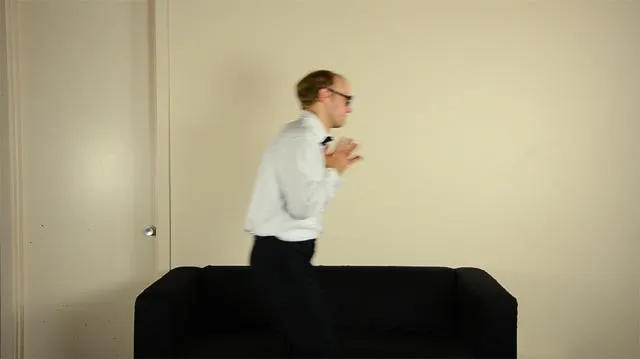
For this tutorial, we are going to track Walter’s head as he walks through the shot and attach a halo to it :)
After Effects Motion Tracker Controls
To get started with motion tracking in After Effects, open the Tracker window by going to
Window -> Tracker.
A small tool window containing all the controls necessary for tracking your footage will appear on the screen.
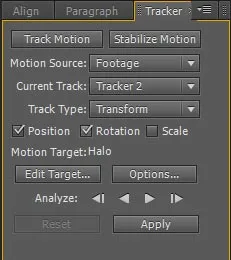
Scroll to a time position in your clip where Walter’s head is fully in frame, make sure the footage layer is selected and click on the ‘Track Motion’ button in the Tracker window. Since we also want to track the rotation of Walter’s head, make sure the ‘Rotation’ checkbox is ticked. You should now see 2 track points overlayed onto your footage, connected by a white line.
Motion Track Points
If you zoom into your track points, you will notice that each of them consists of 2 rectangles!
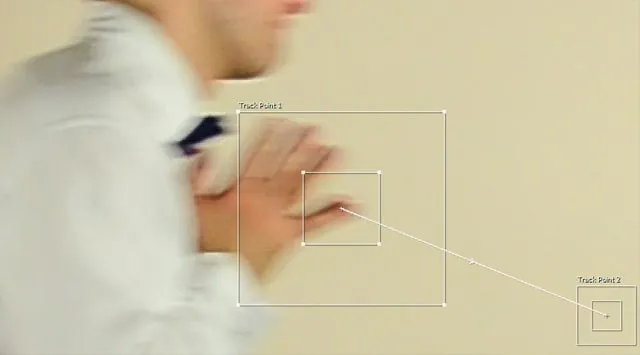
The inner rectangle defines the part of the frame we want to track. Make sure you position it on a very distinct and high contrast element that is easy to follow visually from frame to frame.
The outer rectangle defines the area that will be searched each frame to locate the contents defined by the inner one. Make sure it is big enough so that the element you are tracking remains within its borders across consecutive frames.
Notice that the larger you make the rectangles, the more processing After Effects will have to do and the slower the motion tracking calculations will become. Also note the small arrows on the white line connecting the 2 track points.
Track Point 1 will define the position data we are recording and Track Point 2 is used to record the angle i relation to Track Point 1 and store it as a rotation value.
Before we can get started tracking the footage, we need to understand what Null objects are and how we can use them to store our tracking data!
Null Objects
Before we get started with the motion tracking, we need a place to store our tracking data. For this, a Null Object will be perfect. You can create a new Null Object by selecting
Layer -> New -> Null Object.
I called my layer ‘HeadTrack’ as we’ll be tracking Walter’s head :)
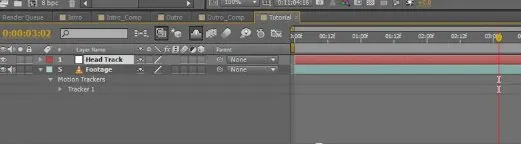
A Null Object is merely a placeholder object with a transform that contains position, rotation and scale data. You can animate these properties or add other custom properties to the Null Object and then use the Null to control other layers in your composition. A Null Object will never be rendered.
We will use the Null Object to store our position and rotation data from motion tracking Walter’s head.
Tracking The Footage
Position the track points on the element you want to track. For me, I will place them on the back of Walter’s head and on his hairline as I want to track the position and the rotation of his head.
Once you positioned your track points, you can start the motion tracking process by clicking on the ‘Analyze Forward’ button in the Tracker tool window.
After Effects will now, frame by frame, process your footage and try to keep track of the elements you specified with the track points. If at any point in time the track points fail to follow what you expected them to, you can stop this process, go back, reposition the track points and continue the process from where you left of :)
Sometimes you have to fix a few small things manually or help the motion tracking process along, but eventually you should end up with having your track points follow the object you are tracking nicely.
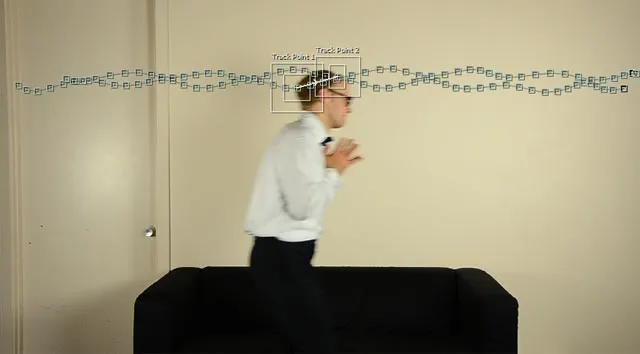
Apply Motion Tracking to Null Object
Now that we have the track points follow Walter’s head, we can apply the motion tracking data (position and rotation) to our HeadTrack Null Object. For this, click on ‘Edit Target’ in the Tracker tool window and select the HeadTrack layer. Then click on ‘Apply’, select ‘X and Y’ and click OK.
Now when you scroll through your clip, you should see the Null Object follow Walter’s head correctly through the shot :)
You may have to manually fix up parts of the track, for example, where your actor enters or exists the frame. I fixed up the track for the HeadTrack Null Object manually.
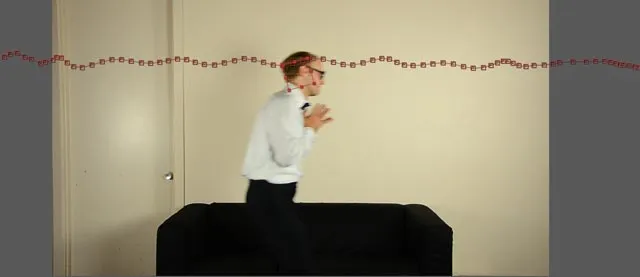
Parenting The Effect Layer To The Null Object
Finally, I’ve created a nice glowing halo effect that we will now attach to Walter’s head :)
Go to any frame in the footage and position the halo nicely over Walter’s head.
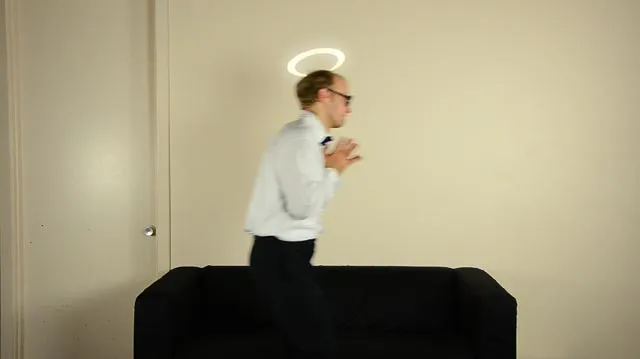
We now want to parent the halo layer to the Null Object layer. You can do this by selecting the pick whip in the ‘Parent’ column for the Halo layer and dragging it onto the HeadTrack Null Object. This will make the HeadTrack layer the parent of the Halo layer.
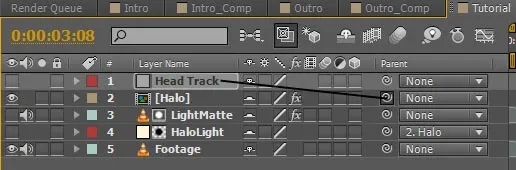
Now, every change in position, rotation and scaling that occurs on the HeadTrack layer will automatically be applied to the Halo layer. Since we used motion tracking to make our HeadTrack Null Object follow Walter’s head nicely during the clip, so will our Halo layer :)
The Result
You can add more effect layers and have them follow Walter’s head by parenting them to the HeadTrack Null Object. I added a nice glow for the halo to make it look a little more convincing :)

You can use motion tracking to trace the movement of any element in your footage (as long as they have distinct features you can track), store the data in a Null Object and then use the Null Object to attach effect layers or control all sorts of other effects with it :)
Motion tracking is a fundamental part of knowledge for any visual effects artist and I am sure you will have lots of fun with it! :)
25 Comments
Hi, could you please help me with using motion tracker to make text move with a video so that the words are attached to a specific part of the video? Thanks
I actually have a tutorial that uses the motion tracker to attach a blood hit effect to a video while the camera is moving - you can check it out on my YouTube channel :) It's called "How to Make Realistic Looking Blood Hit (Bullet Hit) Effects With A Moving Camera". I am still writing the blog post to explain the details of the camera tracker!
two thumbs up
hi, i was wondering if you could tell me why i could not click on edit track and why i cant find the apply buttons
Can you be more specific in what exactly you are trying to click where and what is happening (or not happening)? Have you been able to track your footage or is this before you even get to track it?
Hi Tobias, currently, I am implementing your tutorial into face changing with the two track points. I have been searching and trying on different track points but the track points often goes away. So the face either always running away, or small, or enlarges. Will you please kindly guide me what goes wrong?
Is there a way to change the face into different side views?
Thank you in advance.
Hi Tienny,
You will not be able to track a moving face properly with the 2D track points in Adobe After Effects. As the head rotates the track points will not be able to identify the rotation and any flat image you place over the face will never truly align. To do face replacement, you will have to use 3D tracking, more specifically what is called 'object tracking' or 'geometry tracking'. You need to create a 3D model of the head with a new face, match its movement in 3D space to the person moving and then do a composite replacement. This is not an easy task, but I highly recommend checking out tools like pfTrack or Syntheyes - they specialise in this type of tracking.
Hi Tobias,
I want to track a black jacket and I want to put a bullet hole on it or blood on jacket but when I put a motion track on it, the picture is not stayed on the black jacket or the specific place. Can you help me on this? I'm beginner in video editing.
Hi Sam, can you explain why exactly it does not stay on the jacket? I assume you attached the bullet hole to the tracked null object?
When I play the motion track the specific place I want or the bullet hole don't stay on the jacket because the video or the body on the video is moving and hand will cover the bullet hole(in the area of heart) and the bullet hole goes anywhere.. Sorry for my english. Im not good in english
You can use masking to deal with the hand covering the bullet hole, but you will have to rotate it in 3D space to match the movement of the body or do proper object tracking to make sure it stays attached. You might be better off just using some fake blood instead of a VFX
Hey Tobias,
Kind of an on again off again user of AE, so I've never really gotten too familiar with anything more than the basics of the program, but can you please tell me why when I track my footage, and go to apply it to the null object, is it not shaded? I mean it's there in the list, but isn't clickable -thus I cannot apply my tracking data.. This is prolly a small silly little thing that's right in front of my face, but i can't see it nonetheless lol. If u can text me that'd be great, not sure if your website is set up to notify me of responses or not. 6074814947. Thanks so much, in advance :)
Hi! I am not sure why your null object would be shaded. The only reason I could think of is that you for some reason no longer have the motion tracker selected and therefore there is no valid target available. Are any of the other layers in the composition available for you to select to apply the tracking data?
Hi Tobías im new in AE. Today is my firdst day. My english is not good. Imágenes tryin to track an image into other "photo " with movement and then this picture go out of scene. The tracker fails following this pho when its get out. There was any method to make this autimatic?. I think in a posible solytion but i dont try yet. I think in work with a Project more big than the original movie and then cut the film. Let out all i need out of scene. Sorry for my bad english i wish you can understand me.to
Hi, check out this tutorial: [youtube id="OWrBsTO9_8s"] It shows how to keep tracking even if the feature you are locked on to leaves the shot
Hi Tobias,
well im having a problem about the motion track points, i did what ur toturial said but everytime i click the track motion, track points never shown up.
Hi, where exactly is what is happening to you diverge from the tutorial? You're saying you have your footage layer selected, click on 'Track Motion' and don't see any track points?
thanks a lot...useful tutorial
Hey Tobias ,
I am trying to face swap the Columbia women intro using after effects cs6 . I am using tracking motion and every thing is great !!
but I have no Idea how to make the head smaller each frame that goes by . It seems that there is only one size option to do that , because when I use the position tool its changing the size of all the heads of each previous frame the I re- sized .
please help!!
You need to enable keyframing on the size property. Please follow along with my beginner series to get familiar with the basics of After Effects: https://www.surfacedstudio.com/blog/after-effects-basics-beginner-tutorial-series
I am a beginner so I am not sure what I did wrong. I was trying to remove/cover a label that was on some clothing in a video I am editing and I am not sure why it did not follow the track. I tried a couple of options. The first way I did it was by applying the tracker, creating the null, using the composition and made it a photoshop layer so I can edit the video still image then parent it to my null object so that image I was trying to cover is removed and the video continues playing as normal but that did not work, do you have any suggestions as to why? The other way I used is by using the cloning stamp but it was easier to do a quick select then a content aware fill but I don't know if you can do that in AE. Once I cover the part of the video I need , the video won't play as normal, it still acts as a still image. Please help, I hope I explained this well enough.
Hi could you share how to export the x and y position and their time frame of our target tracking into the json or xml or text? I need this for my work. thanks for your help
Hi, that's not something I ever had to do. You may want to check out custom scripts for After Effects - it's certainly possible :)
Hey Tobias, I saw your Energy Ball tutorial on YouTube but can't find how to motion track the center point of the hands. Do you have a video or just a quick answer on how to? I have it tracking both hands with position&rotation but I can't select the center point of the trackers.
I actually used a simple Expression to calculate the center position for the 3rd null object from the two I tracked for the hands.
Here is the pseudo-code: middle = pos1 + (pos2 - pos1) * 0.5
I'm not at my computer at the moment but hopefully it shouldn't be too hard to convert that to an AE Expression :)