 Surfaced Studio
After Effects Null Objects: What They Are and How to Use Them
What is a Null object?
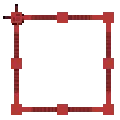
A lot of people tend to be mystified by Null objects, not only because of their name but also because they are invisible and by themselves they have no effect whatsoever. Null objects are just marker with a position, rotation and scale that you can place in your scene either as a 2D or 3D layers. They are represented in After Effects by little red squares with 9 handles that you can use to transform them.
What are Null objects for?
Null objects are used as helper objects to mark or control other visual elements in your composition. You can parent other elements to a Null object to control the movement of the child layers by transforming the parent. This allows you to control groups of visual elements with a single Null object layer.
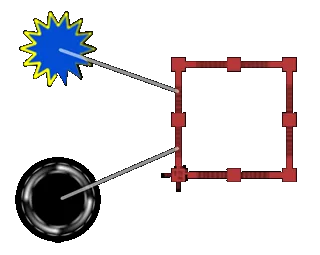
Null objects are usually used to store position data from motion tracking. Check out my motion tracking tutorial if you want to learn how to track your scene and apply the data to a Null object. Once you have a Null object that follows some visual element in your scene, you can parent other elements, like explosions and fire, to it and they will also follow the movement of the camera.

Let’s have a look at Null objects and how you create and use them in detail.
Controlling Other Layers in Your Scene
Assume you have a composition set up in After Effects that contains a large number of layers. If you want to control these layers as a group you would have to pre-compose them to create a single layer that you can manage, but sometimes you want to keep all the elements directly accessible within your composition.
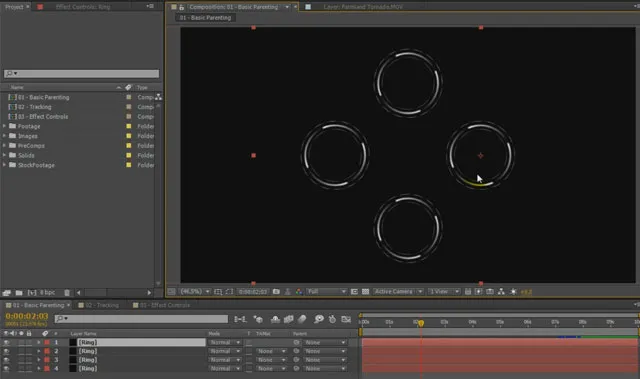
However, if you select all of those layers and rotate or scale them you will notice that rather than rotating or resizing as a group, each of the layers will transform around its individual anchor point.
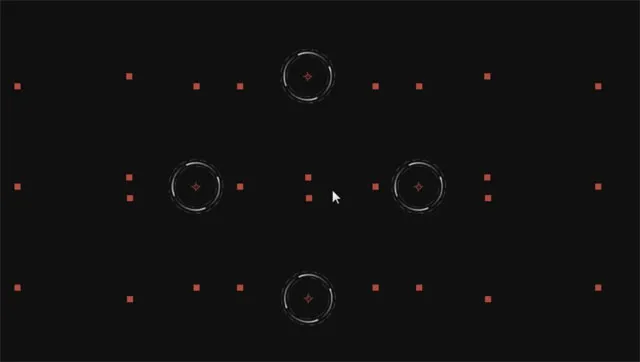
If you wanted to control these layers as if they were a group, you can instead create a new Null object and use it as a parent to manage their transformations. To crete a new Null object layer, go to the main menu in After Effects and select Layer —> New —> Null Object.
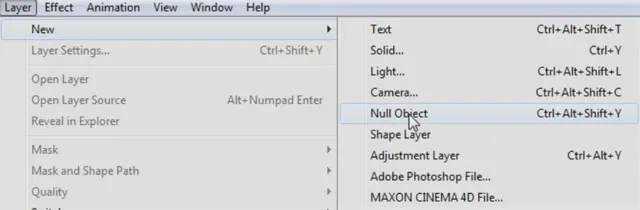
This will add a new Null Object layer into your composition and you will see a red square indicating the position of this invisible object. You can then parent all of the layers you want to control as a group to this Null object by selecting them and dragging the pickwhip icon from one of the children onto the new layer.
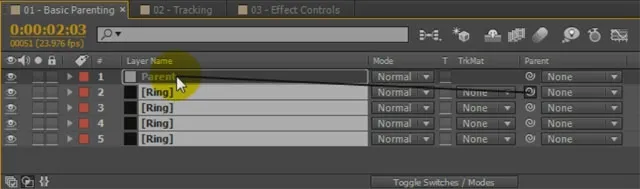
You can now move, scale and rotate the Null object and all of the layers that you linked to it will be moved, scaled and rotated as a group with their centre being the Null.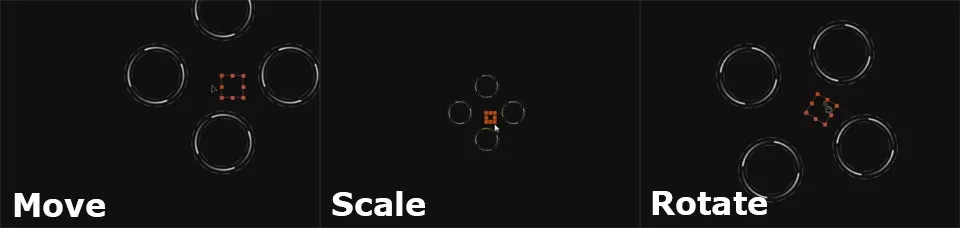
Motion Tracking and Setting Fields on Fire
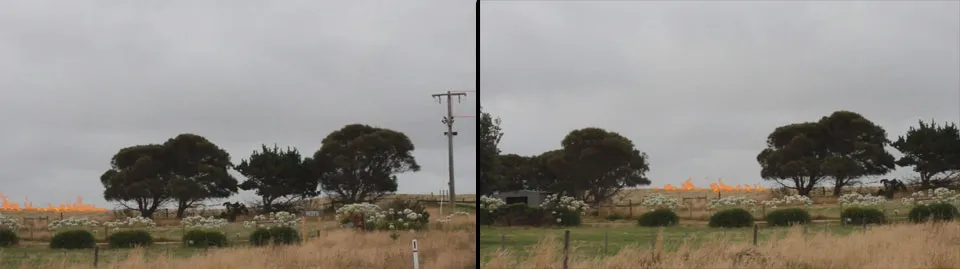
As mentioned above, this technique is most useful when trying to composite visual elements (such as fire, smoke or explosions) into a moving shot. You can create a new Null object and then motion track your footage and apply the tracker data to the Null object. Once you have done this, you will have the Null object follow the tracked element as seen in the shot below. I have tracked the tip of the power pole and applied the tracking data to a Null object.
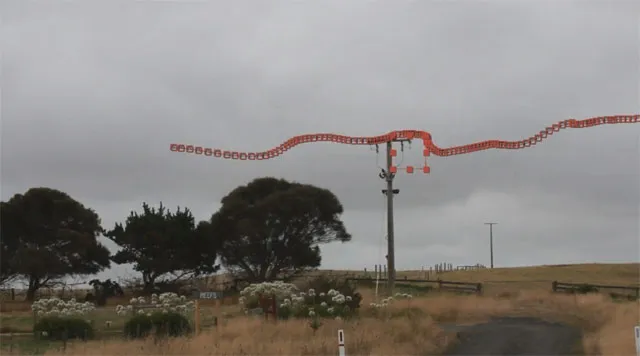
You can then place other elements in your footage and parent them to the Null object to make them follow the camera’s movement correctly. In the shot below I placed a simple fire element into the fields and parented it to the tracked Null object. Notice how the fire follows the movement of the shot.
Controlling Effect Parameters
Another use for Null objects is to make it easy to control and animate position properties of effects. A lot of effect in After Effects have parameters that represent a 2D or 3D position. When you keyframe and animate these properties, you often can’t visually see them on the screen and you have to manually alter the x, y and z coordinates to make changes.
You can use expressions to link the position property of the effect to the actual position of the Null object. In order to do this, simply alt-click on the stopwatch icon next to the property you want to link and then use the pickwhip icon to drag onto the Position property of the Null object layer you created.
In the screenshot below I am linking the Position XY property from the Optical Flares effect to the position of my Lens Position Null object.
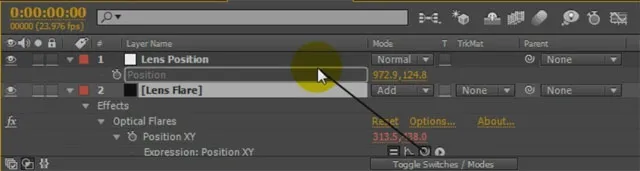
I can now control the position of the lens flare by dragging the null object around in the scene rather than having to open up the properties of the Optical Flares effect. This technique also allows me to link a number of position (or other) properties to the same Null object and control all of them at once.
Managing Expression Controls
Expression controls in After Effects allow you to control large amounts of effect parameters and very complex compositions with ease. Since you have to apply these expression controls to a layer, I like to create a new Null object, give it a recognisable name like ‘CONTROL’ and place all of the expression controls on it.
This is a simple way to organise my expression controls and create a single point of access to manage more complex visual effects.

Even though Null objects by themselves do nothing at all, in combination with parenting, expressions and expression controls, they are an invaluable tool to create and manage complex visual effects in Adobe After Effects.
7 Comments
You have a real talent for teaching, especially with, what can be, complex operations. I like to have my AE open and follow along with what you are doing and try it my self. I use AE just for fun, not commercially, but enjoy learning new things. Keep up the great work!
Thank you very much for the awesome feedback!
Thanks for your awesome tutorials. I'm learning easily from you.
Cheers from Argentina!
Hi,
Nice tutes.
Are you able to provide the AEP files and assets as well for us as well?
cheers
Thanks, I have a lot of downloads for sample files on my tutorials. I usually don't provide the AE file since people can just follow along to create the effects anyways :)
Where did you get those ring objects from? I've been looking for them for an effect in one of my videos. Thanks!
I created them myself after watching this Video Copilot tutorial on advanced spinning VFX: https://www.videocopilot.net/tutorials/advanced_spin_fx
My version is super ugly in comparison, but it was sufficient for what I needed it to do :)