 Surfaced Studio
Adobe After Effects Expression Controls Tutorial
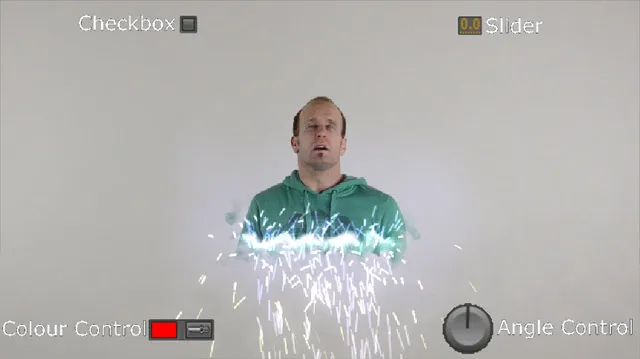
I’ve always enjoyed building rather complex VFX in After Effects with lots of layers and animated properties all over the place! However, once you reach a certain level of complexity, it can be hard to manage or modify your effect without having to reshuffle all of your keyframes.
This is where Expression Controls come in handy!
Learn all about these useful helpers in this YouTube video! Enjoy :)
Setting up Expression Controls in Adobe After Effects
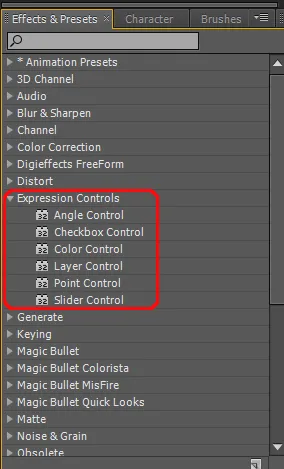
There are a number of expression controls that you can find in the Effects and Presets window in Adobe After Effects. These controls include
- Angle Selector
- Checkbox Control
- Colour Selector
- Layer Selector
- Point Selector
- Slider Control
Expression Controls are simple controls that do nothing at all by themselves. They are merely containers for a value of a certain type (continuous, on/off, angle, colour, etc) that you can change and keyframe.
However, you can link up the value of a slider to the opacity of 20 layers and then, by animating the value of a single slider control, you can change the opacity of all those 20 layers simultaneously - that is the power of Expression Controls :)
To link the value of an Expression Control to any effect parameter on any other layer, alt-click on the stopwatch icon next to the effect parameter you want to link. This will enable the expression for the parameter. An expression (as opposed to an Expression Control) is a simple code expression that tells After Effects how to calculate the value for this parameter.
But you don’t need worry about that now! All you have to do is to click and drag the pickwhip icon from the effect onto the value of your Expression Control. This will automatically create the correct expression that tells After Effects to derive the value for this parameter from the value of the expression control :)
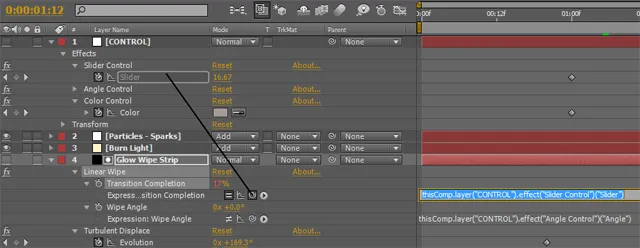
In the above example I am linking the Transition Completion parameters of a number of layers to a single slider Expression Control.
If you then animate the value of the slider, you will automatically animate the value of all the linked effect parameters.
The only thing to watch out for is that the parameter you want to link matches the type of the expression control. For example, you cannot link an angle to a checkbox or a colour to a slider.
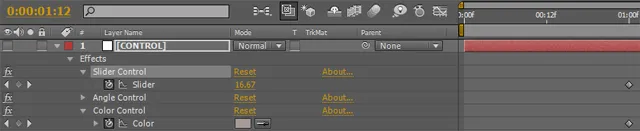
Expression Explained
Warning, code ahead!
When you link an effect parameter to an Expression Control with the pickwhip tool, After Effects will automatically create the expression to retrieve the correct value for you.
If you have a layer called ‘CONTROL’ with a Slider Control effect called ‘Slider Control’ attached to it and you link to this Expression Control, the expression created for you will probably be
thisComp.layer("CONTROL").effect("Slider Control")("Slider")Here is a breakdown of the individual elements of this expression
thisComp            - specify that we are accessing the current open compositoin
.                   - the dot '.' accesses a property. In this case
.layer                accesses the 'layer' property of 'thisComp'
("CONTROL")         - from the layer property it finds the layer called 'CONTROL'
.effect             - select from the effects on the CONTROL layer
("Slider Control")  - Select the effect called 'Slider Control' from the layer
("Slider")          - From the Slider Control effect, select the value called 'Slider'
11 Comments
Hi Tobias, thank you for producing all your tutorials. They are great. Here is a question for you when setting up sliders:
me
in AE
I have opacity linked to a slider
thisComp.layer("TransparencyControlForType").effect("Slider Control")("Slider")
so now the slider controls opacity
now, how do I edit the expression so that the transparency value of the type can be adjusted as well
for example:
I set the type trans to 50%
but I set the slider to 50% getting 100% transparency. Let me know please, thank you !
Hi :)
Sorry for my slow reply, I've been working on a new website for a while but haven't gotten around to checking what's been going on here. What do you mean with 'the transparency value of the type'? Your slider controls the opacity of the TransparencyControlForType layer? Does that work? I think you're missing a '.value' at the end of your expression :)
Thanks for the great tutorial.
I have a question:
Is it possible to link the opacity of a layer to a Layer expression control that's applied to a Null?
So that for example, when you select layer.1 only layer.1 will be 100% opacity and other layers with the same expression will be at 0% because they are not selected in the layer control expression.
Thanks
Greets,
Fabian
Hello Fabian,
That is possible. If your null object is called 'Controls' then you can add this expression to the opacity of all your layers
if (thisComp.layer("Controls").effect("Layer Control")("Layer").index == index) 100 else 0
This will set the opacity of the selected layer to 100. If the layer is not selected, the opacity will be set to 0 :)
think you
Hey!
I am wondering if i can link only certain keyframes to the control slider.
Example: I use make a flash with Exposure, and i want 1 slider to control all the highest frames. Lets say it starts at 0 goes to 1 then back down to zero. i want a slider to only control the 1 is that possible?
Hi, you can but you can't tie a slider value to a single keyframe. You will have to use an expression that then scales the value of the slider from it's maximum value down to 0 over how ever many frames you want. It's a bit more advanced than just linking them
My After Effects does not have these effects ... how do I have it?
Which effects does it not have?
hi sir can I ask technical help I have this issue for a week ago about this expression control in my adobe after effects. I can't see expression control under Y rotation. I have a project making a image carousel but I stop doing it because I dont know the problem. What do you think the problem? Thanks and more power
What do you mean by 'I can't see expression control under Y rotation'? What Y rotation?